YouTube is harder to block than most apps because it's also useful. You might need it for a tutorial, a lecture or music, and then an hour later you're deep in Shorts.
Screen Time can block YouTube completely or limit it to a daily allowance, and it can block the website too. No extra app needed.
Why YouTube's own limit doesn't hold
YouTube has a Remind me to take a break setting and a bedtime reminder. Both show a message you can dismiss with one tap, and there's no setting to turn off Shorts.
Step 1: Set a temporary Screen Time passcode
Go to Settings > Screen Time > Lock Screen Time Settings and set a simple passcode like 1234. You'll replace it in Step 4. You need one now because the Block at End of Limit toggle only appears once a passcode exists.
Step 2: Add an App Limit for YouTube
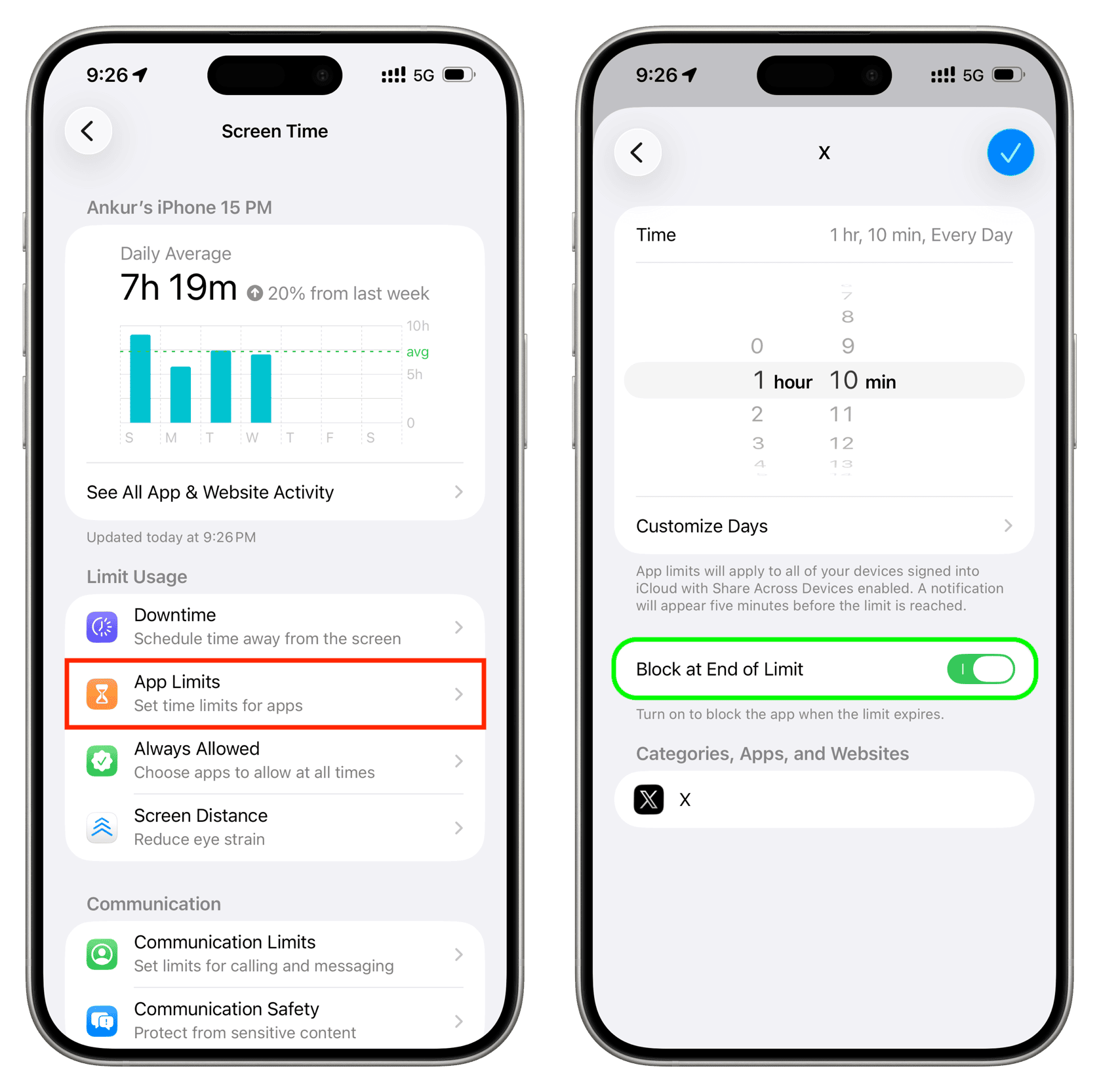
- Go to Settings > Screen Time > App Limits > Add Limit.
- Open Entertainment and select YouTube.
- Set the time to 1 minute to block YouTube completely, or give yourself a daily allowance if you use it for tutorials or music.
- Turn on Block at End of Limit. Without it, you get a One More Minute button you can keep tapping.
Step 3: Block YouTube in Safari
Once the app is blocked, the website is the next place you'll go. Go to Settings > Screen Time > Content & Privacy Restrictions > App Store, Media, Web & Games > Web Content, choose Limit Adult Websites, and under Never Allow add:
youtube.comwww.youtube.comm.youtube.comyoutu.be
youtu.be is YouTube's short link domain, so adding it stops shared links opening in Safari. Note that YouTube videos embedded on other websites may still play.
Step 4: Replace the passcode with one you don't know
You know 1234, so right now you can undo all of this in a few seconds. Replace it with a passcode you don't know. WaitToUnlock generates a random passcode, walks you through entering it under Change Screen Time Passcode without learning it, and only reveals it after a waiting period. Having a trusted friend or partner set it works too.
Then close the recovery loophole: iOS lets you reset a Screen Time passcode with your own Apple Account unless you set things up carefully. Here's how to disable that.
Using YouTube for work or study
If you need YouTube for something specific, give it a daily allowance instead of blocking it outright. You can also use Downtime (Settings > Screen Time > Downtime) to block it only at night, which is when most people lose the most time to it.
Common questions
Can you block YouTube on iPhone without an app?
Yes. Add an App Limit for YouTube in Screen Time, set it to 1 minute, and turn on Block at End of Limit. Add youtube.com and youtu.be to Safari's Never Allow list so the website is blocked too.
Can I block YouTube Shorts on iPhone?
Not on their own. YouTube doesn't let you turn off Shorts, and Screen Time can only limit the whole app. A daily allowance or blocking YouTube at night with Downtime are the closest options.
How do I stop myself unblocking YouTube?
Protect Screen Time with a passcode you don't know. Use WaitToUnlock or have a friend set it, and remove your own Apple Account from passcode recovery.