You did everything right. You set up your App Limits, you had someone set a Screen Time passcode you don't know (or used a tool to do it), and when iOS asked for an Apple Account to use for recovery, you carefully tapped Cancel, because linking your own account would obviously let you reset the passcode.
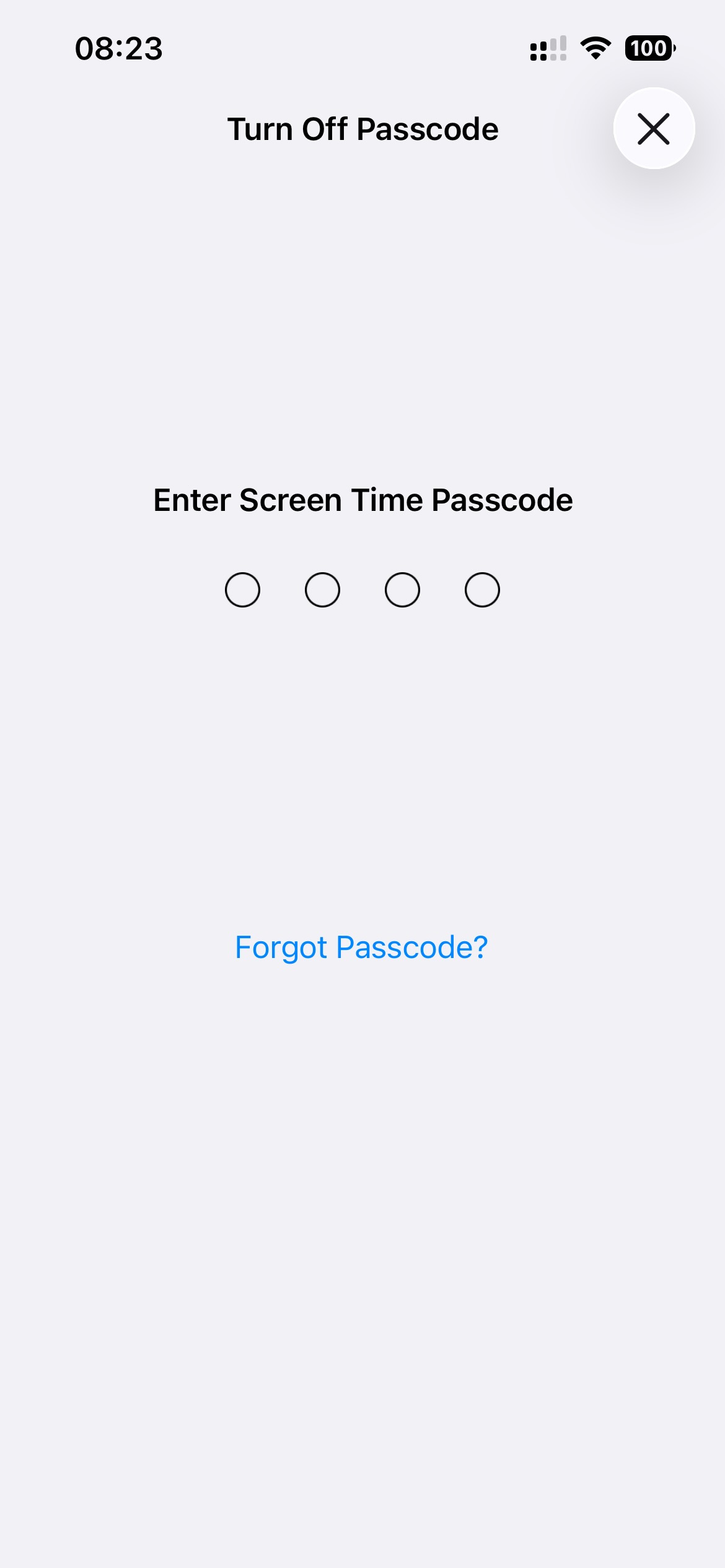
Then one evening you open Settings > Screen Time > Change Screen Time Passcode, tap Forgot Passcode? out of curiosity, and iOS asks for your Apple Account email and password. The one you're signed in with. The one you know. Thirty seconds later your Screen Time passcode is whatever you want it to be, and every limit you set is gone.
Why tapping Cancel doesn't work
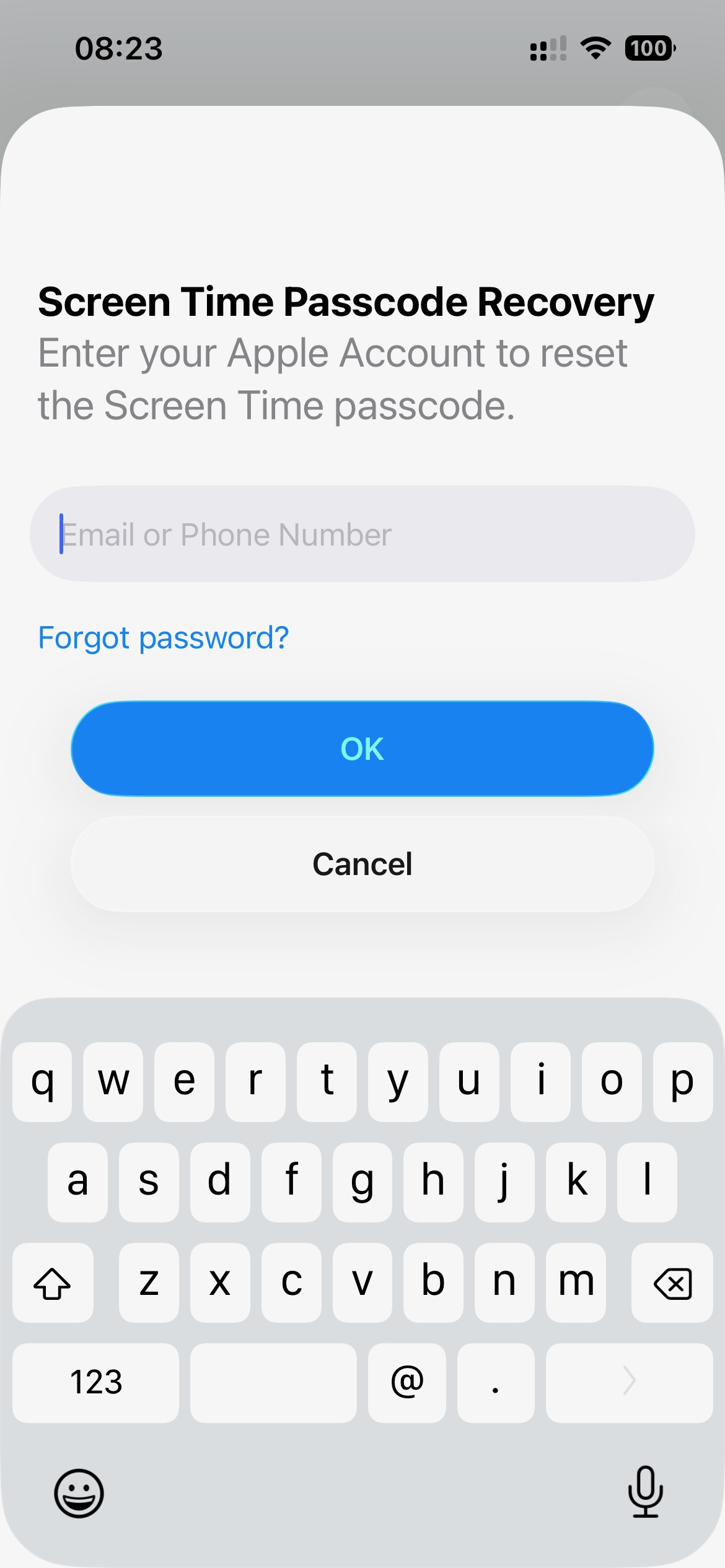
On recent versions of iOS, declining the recovery setup doesn't disable recovery. If no separate recovery account is linked, the Forgot Passcode? flow simply falls back to the Apple Account the phone is signed in with. Your own iCloud credentials can reset the passcode, whether you asked for that or not.
From Apple's point of view this is a feature. Most people who forget their Screen Time passcode set it themselves, months ago, and just want back in without wiping the phone. For them, the fallback is exactly what they need.
But if you set a passcode you deliberately don't know, to keep yourself off certain apps, the fallback defeats the whole setup. There is no switch in Settings to turn it off. You can't unlink an account that was never linked. Cancel changes nothing.
The fix: a recovery account you can't use
Since you can't remove the recovery path, the fix is to fill it with an account you can't use. If a specific Apple Account is linked as the recovery account, iOS asks for that account's credentials instead of falling back to yours. The steps are:
- Create a fresh, throwaway Apple Account, separate from your real one.
- Give it a password you never learn.
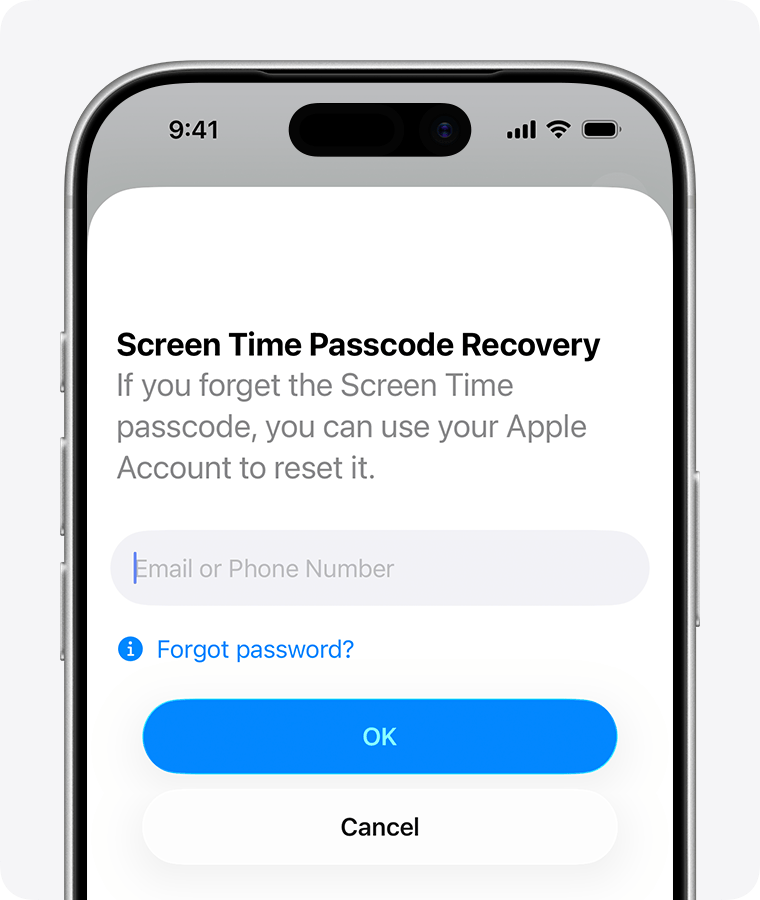
- Enter that account on the Screen Time Passcode Recovery screen.
Now Forgot Passcode? asks for credentials you genuinely don't have. The loophole is closed, and unlike a no-recovery setup, a real recovery path still exists, just not one you can use on impulse.
How to set it up, step by step
You could do this manually with a friend holding the burner password, but the same "just tell me the code" problem applies as with a partner-set passcode. WaitToUnlock's Complete Lockout feature automates it:
1. Generate the burner password. Open Complete Lockout in WaitToUnlock. It generates a strong password for you to use for a new Apple Account.
2. Create the burner Apple Account. Go to account.apple.com and sign up with a fresh email you control, using the generated password. Signup needs an SMS code, so use a cheap throwaway SIM rather than your own number, then put it somewhere inconvenient.
3. Lock the password away. Back in WaitToUnlock, hit the lock button. From that moment, you don't know the burner account's password. It's stored encrypted, like your Screen Time passcode.
4. Set it as your recovery account. The next time you set a Screen Time passcode through WaitToUnlock's guided flow, the burner password is shown briefly at the recovery step so you can enter the account on the recovery screen. Then it's locked away again.
That's it. Your Screen Time passcode isn't in your head, and neither is the password that could reset it.
Won't I lock myself out for real?
No, and this matters. A setup with no working recovery is dangerous: lose the passcode and the only way out can be erasing your phone. This setup keeps two deliberate ways back in:
- The passcode itself is stored encrypted and revealed after your chosen wait, so you can always unlock the normal way, slowly.
- The burner password is also held for you, so the recovery path exists if you ever genuinely need it.
So you can always get back in eventually, just not instantly during an urge.
A few honest caveats
- This adds friction; it doesn't make bypassing physically impossible. Someone determined enough will always find a longer way around. The goal is that every way around takes longer than the urge lasts.
- Apple changes these flows between iOS versions. The behaviour described here matches current iOS; if your phone shows something different, check the steps on your own device.
- Keep the burner account's email address noted somewhere. You don't need its password day to day, but you shouldn't forget the account exists.
The short version
Tapping Cancel on the recovery screen doesn't disable Screen Time passcode recovery; iOS falls back to your own iCloud account. To actually close the Forgot Passcode? loophole, link a burner Apple Account whose password you never learn. Complete Lockout generates that password, locks it away, and shows it only when you need it during setup. For where this fits in the wider setup, see How to Set Up Screen Time So You Can't Bypass It. For the full technical detail of the mechanism and what's stored, see How Complete Lockout Works.