You read a guide that told you to turn on Block at End of Limit for your App Limits. You open Settings › Screen Time › App Limits, tap a limit, and the toggle is not there. No switch, no greyed-out option, nothing.
The reason is simple: iOS only shows "Block at End of Limit" after you set a Screen Time passcode. Without a passcode, the toggle does not appear at all.
Why Apple hides it
"Block at End of Limit" removes the "One More Minute" option and makes the block hold until you enter the Screen Time passcode. Without a passcode, there is nothing to enter, so a hard block would lock you out of the app until midnight with no way back in. Apple avoids that by hiding the toggle until a passcode exists.
The fix: set a Screen Time passcode first
- Open Settings and tap Screen Time.
- Tap Lock Screen Time Settings.
- Enter a 4-digit passcode, then enter it again to confirm.
- iOS will ask for an Apple ID for recovery. Think twice before using your own: if you can reset the passcode yourself, the lock is weaker. See our guide on the "Forgot Passcode?" loophole.
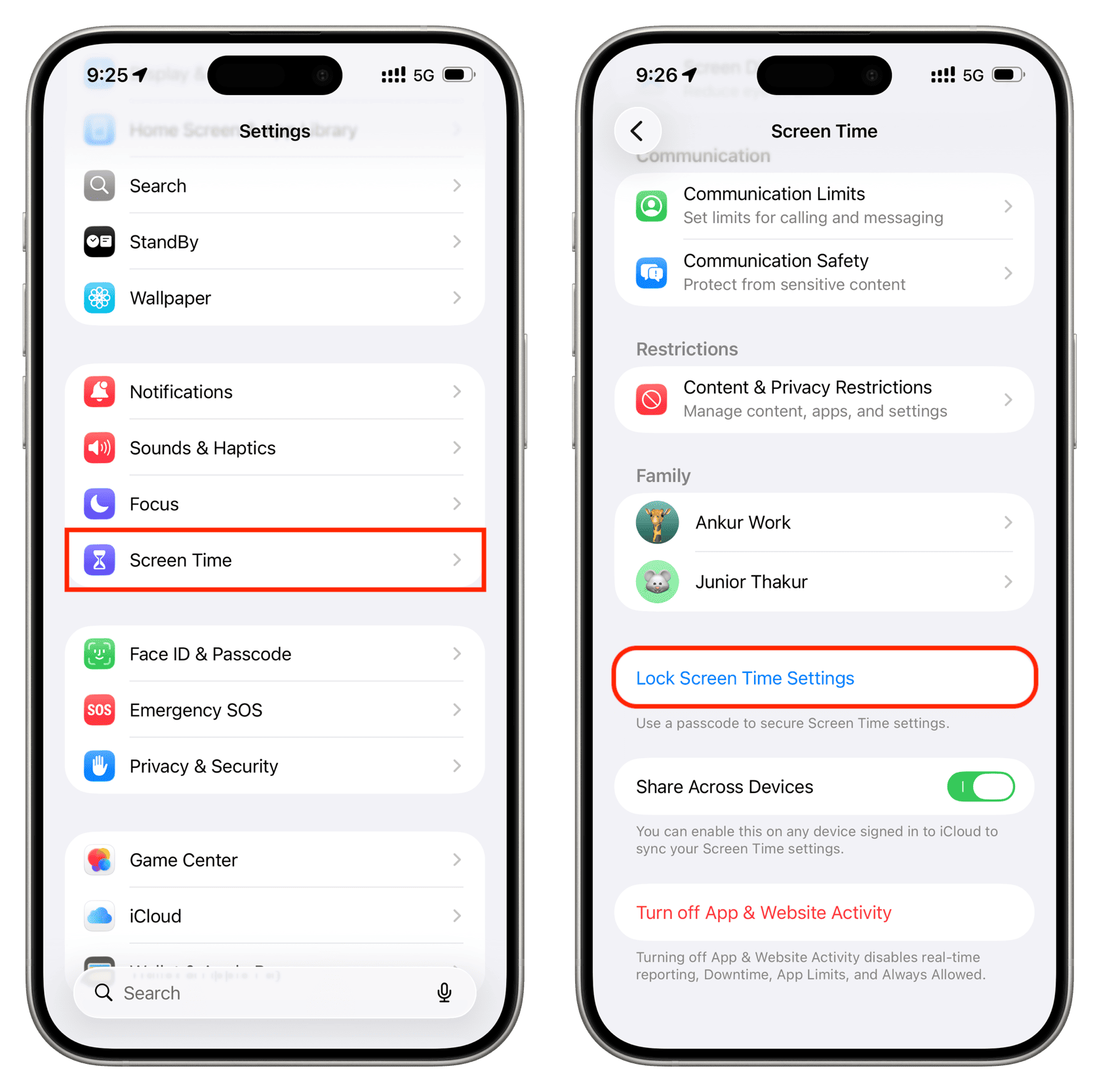
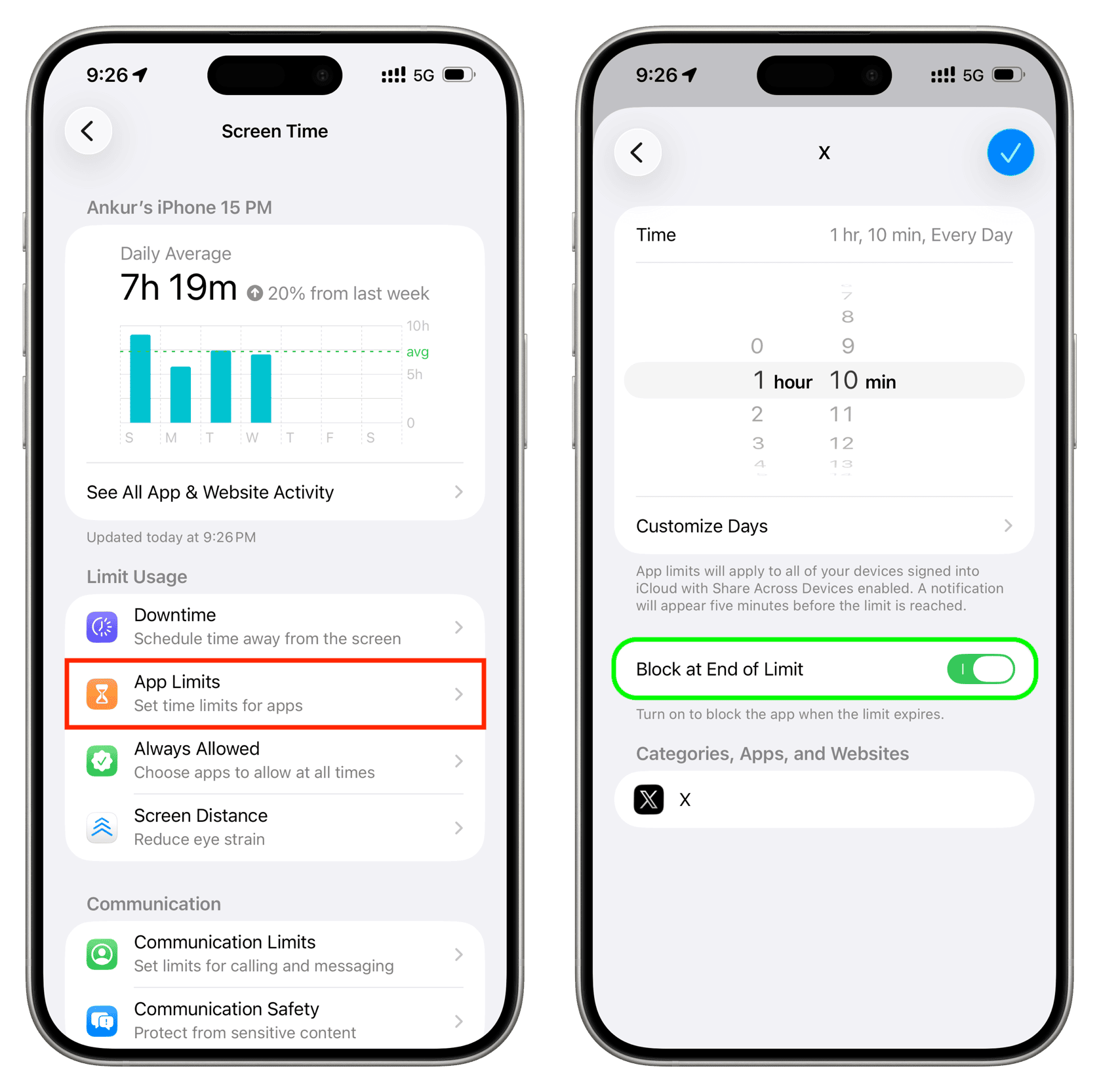
Now go back to Settings › Screen Time › App Limits and open your limit. The Block at End of Limit toggle is there. Turn it on for every limit you have.
Still missing after setting a passcode?
- Check inside the individual limit, not on the App Limits list page. Tap the limit itself; the toggle is at the bottom of its settings.
- Downtime has its own version. In Settings › Screen Time › Downtime, the equivalent toggle is called Block at Downtime, and it also only appears with a passcode set.
- Family Sharing: if the limit was set by a parent from their device, you change this on the parent's phone under the child's Screen Time settings, not on the child's device.
- Restart Settings. On rare occasions the Settings app shows a stale page. Close it fully and reopen.
One more thing before you rely on it
With a passcode plus "Block at End of Limit", the app locks when time runs out. But if you set the passcode yourself, you know it, and you will type it when the craving hits. To make the block actually hold, use a passcode you do not know. You can ask someone else to set it, or use WaitToUnlock, which guides you to enter a random passcode without ever showing it to you, then holds it behind a 6-hour countdown when you want it back.
Summary
- "Block at End of Limit" is hidden until a Screen Time passcode is set.
- Set the passcode via Settings › Screen Time › Lock Screen Time Settings.
- The toggle then appears inside each App Limit. Turn it on for all of them.
- For the block to hold, make sure you do not know the passcode.