Make your Screen Time limits unbypassable
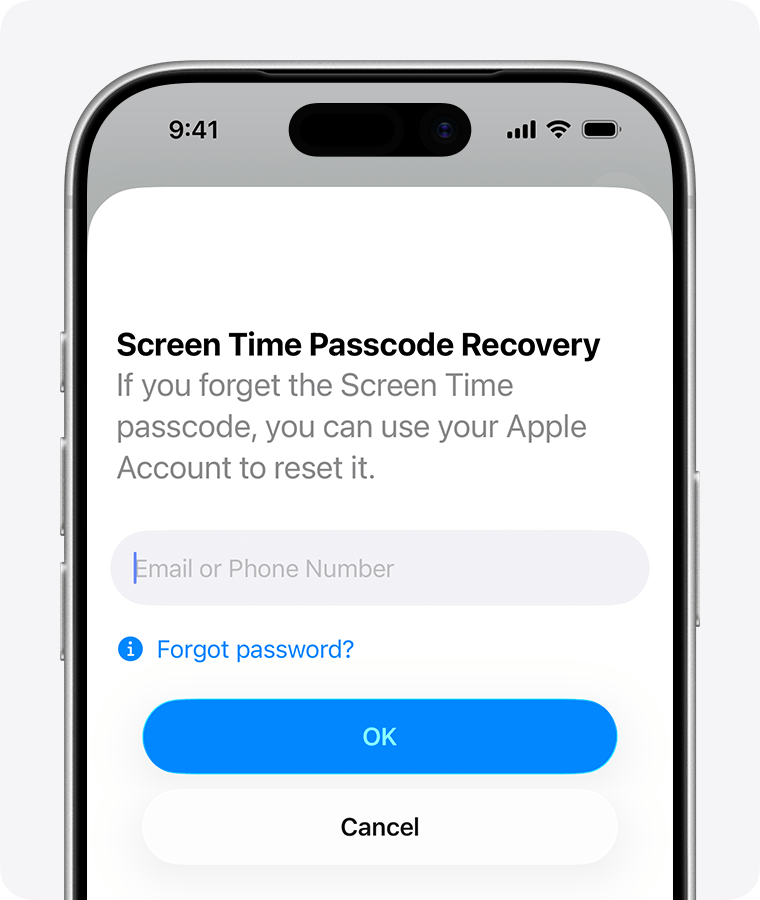
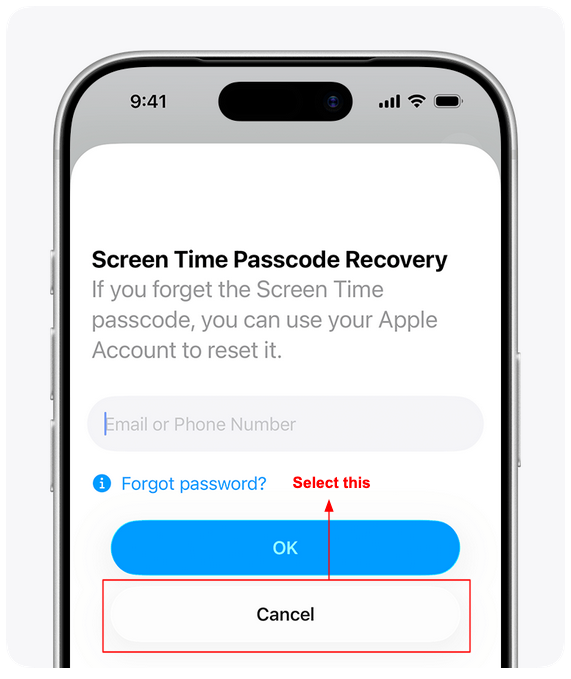
WaitToUnlock guides you to set an iOS Screen Time passcode you can't remember, so you can't just tap "Ignore Limit" and bypass it.
Free forever. One-time payment for longer wait times, no subscription.
How WaitToUnlock works
Screen Time can limit apps, schedule downtime and block porn. WaitToUnlock is just a website that locks it with a passcode you can't remember.
Lock Screen Time settings
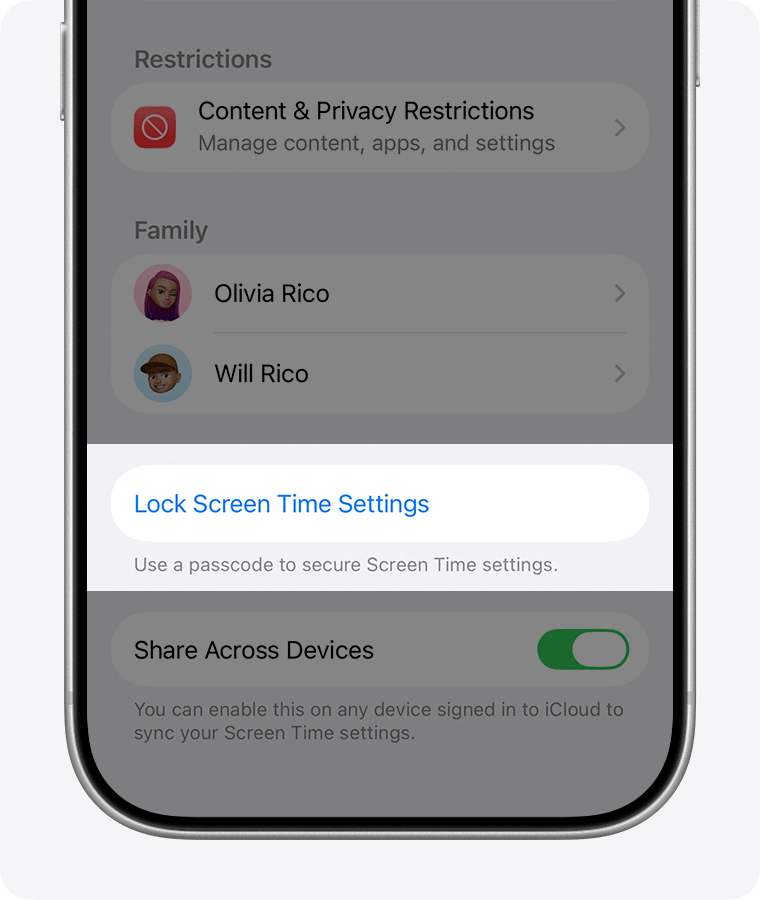
On your iPhone, open Settings > Screen Time and set up your App Limits and Downtime, then scroll down and tap Lock Screen Time Settings.
Set a passcode you won't remember
We generate a random passcode and walk you through entering it in a way that is too confusing to remember.
"Ignore Limit" stops working
The passcode is encrypted and stored. Asking for it back starts a 6 hour countdown.
What people use WaitToUnlock for
Screen Time restricts apps at the OS level. The only way around it is tapping "Ignore Limit" and typing your own passcode. WaitToUnlock removes that bypass.
Avoid expensive third-party blockers
Apps like Opal charge a yearly subscription, but can simply be uninstalled. Screen Time is free, built into iOS, and can't be deleted the way a downloaded blocker can.
Stop doomscrolling
Set App Limits on Instagram, TikTok, X, or your browser at the OS level. When the limit hits, "Ignore Limit" is off the table because you don't know the passcode.
Quit porn
Screen Time can restrict adult websites at the OS level, no separate blocker needed. See the full iPhone porn blocker setup.
Cut down on gaming
Cap your daily time in mobile games at the OS level. Once the limit hits, getting back in means requesting a reveal and waiting out the timer, not tapping one button.
Trusted by 1000+ users
The guided passcode entry is genius
It's so simple. It's just a website. It generates a random Screen Time passcode, then walks you through entering it: tap these digits, delete them, tap more, delete again. By the end, you've entered the passcode without knowing what it is. Then it stores it safely and makes you wait hours before you can get it back. It just works.
Fixes the one loophole iOS Screen Time has
You don't need another app. Screen Time already does everything. The only problem is you know the passcode. Apple will never change that because adults need to stay in control of their own phones, which is fair. WaitToUnlock closes that loophole.
My wife doesn't have to set my passcode anymore
I used to have my wife set my Screen Time passcode so I couldn't override my limits. It worked, but I'd constantly ask her to unlock it. WaitToUnlock gives me the same result without putting her in the middle.
Ready to make Screen Time actually stick?
Set a passcode you won't remember, and let the timer keep you honest. It takes about a minute.
Get Started - it's free