You set an App Limit on your iPhone. The time runs out, the screen turns grey, and then iOS shows you a button: Ignore Limit. One tap, and your limit is gone for the day. If you keep tapping it, you are not alone. Almost everyone does.
This guide shows you how to remove that button, step by step. You do not need any technical knowledge. Each step takes one or two minutes.
What is the "Ignore Limit" button?
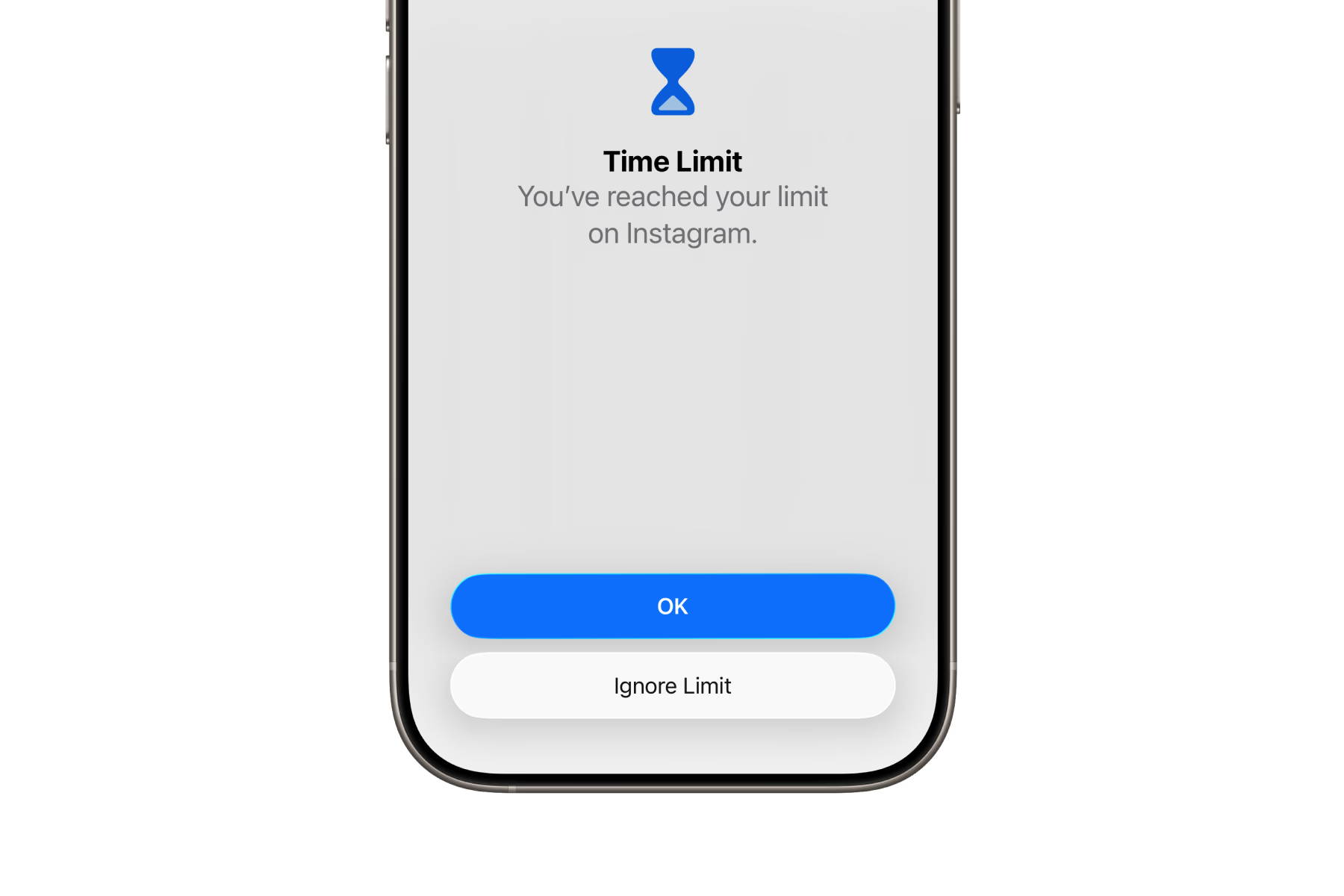
When an app reaches its daily limit, iOS blocks it and shows a message: "Time Limit Reached". Under that message there are options like One More Minute, Remind Me in 15 Minutes, and Ignore Limit For Today. These options exist because Apple does not want to lock you out of your own phone by force.
The problem: when you feel tired or bored, one tap is too easy. After a few days, the limit stops changing your behavior at all.
Step 1: Set a Screen Time passcode
If you have no Screen Time passcode, the "Ignore Limit" button works with zero friction. Anyone (including you) can tap it. So the first step is to add a passcode:
- Open Settings and tap Screen Time.
- Tap Lock Screen Time Settings.
- Enter a 4-digit passcode, then enter it again to confirm.
- iOS will ask for an Apple ID for recovery. Be careful here: if you use your own Apple ID, you can reset the passcode any time, which defeats the purpose. You can read more about this in our guide on the "Forgot Passcode?" loophole.
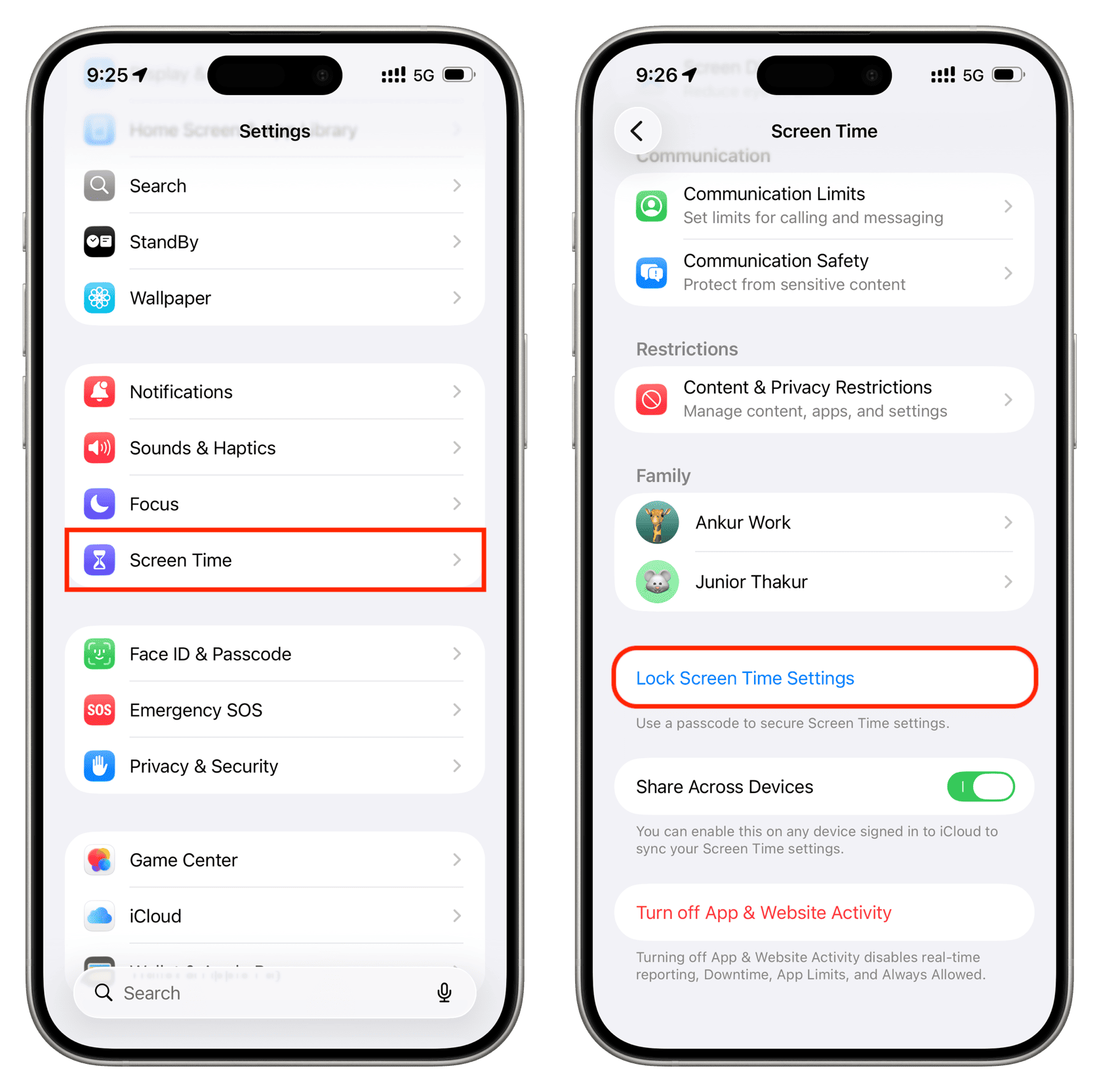
After this, "Ignore Limit" changes. It now asks for the passcode before it lets you continue.
Step 2: Turn on "Block at End of Limit"
This setting removes the "One More Minute" button and makes the block stronger:
- Go to Settings › Screen Time › App Limits.
- Tap the limit you want to change.
- Turn on Block at End of Limit.
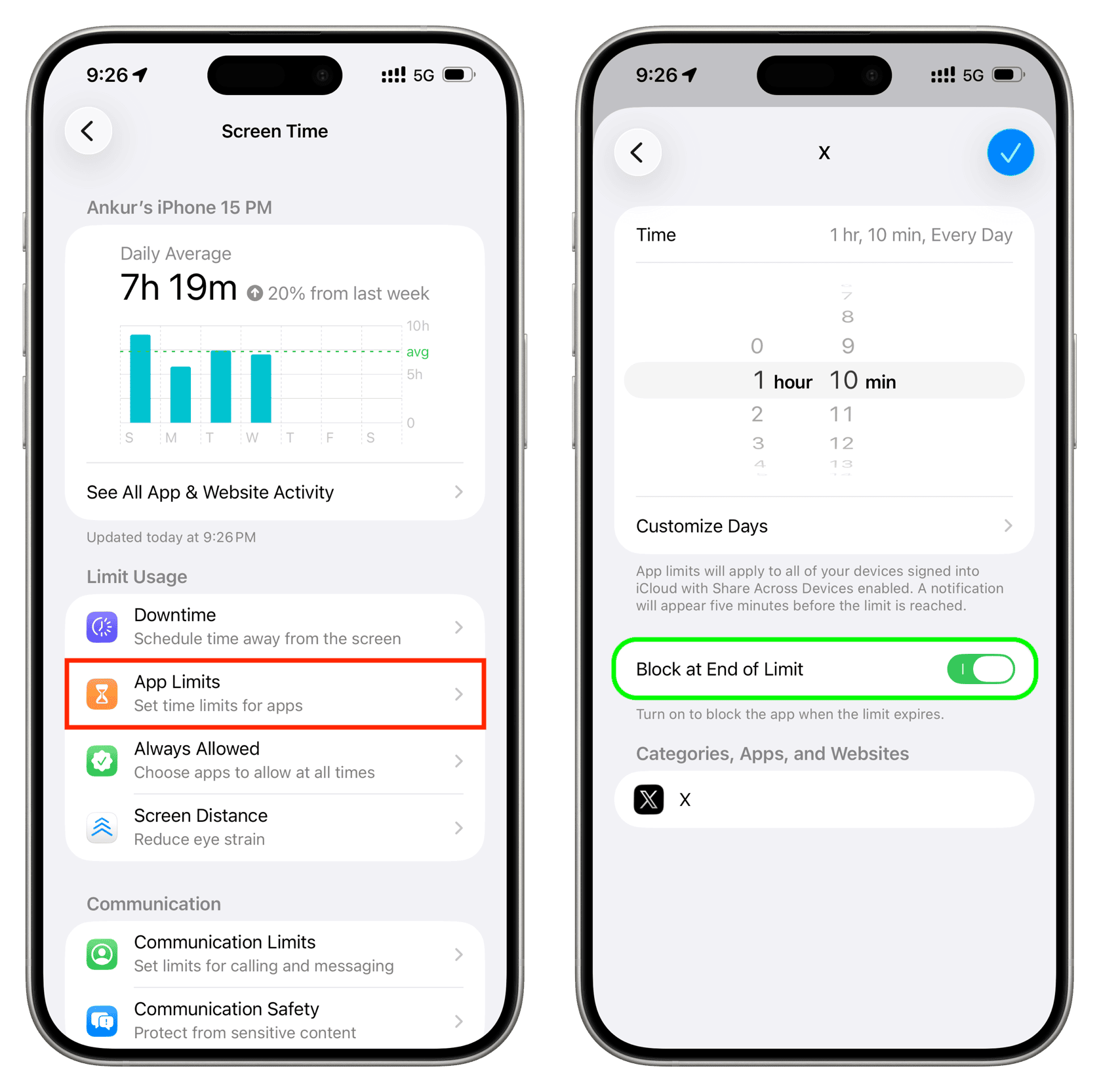
Do this for every limit you have. Now, when the time runs out, the app locks. The only way through is to enter the Screen Time passcode.
Step 3: You still know the passcode
Most guides stop after Step 2, but there is one more gap. The "Ignore Limit" button is now behind a passcode, and if you set that passcode yourself, you know it. At 11 pm, when you want ten more minutes of scrolling, you will type those 4 digits without thinking.
iOS has no setting to remove the button completely. Apple always leaves a way out for the person who holds the passcode. So the remaining fix is to stop being that person.
Step 4: Use a passcode you do not know
There are two ways to do this.
Option A: Ask another person. Ask a partner, a family member, or a friend to type a Screen Time passcode into your phone. You never see the digits. Now, when the "Ignore Limit" prompt asks for the passcode, you have nothing to type. To get past your limit, you must contact that person and ask. For most people, that small extra step is enough to stop the late-night unlock.
Option B: Use a waiting period instead of a person. Maybe you live alone, or you do not want to give this job to someone else. WaitToUnlock was built for this case. It creates a random passcode, guides you to enter it on your phone without ever showing it to you, and then hides it. When you want the passcode back, you start a countdown and wait several hours. During those hours, your limits hold, because you have no way to get the code sooner.
Video not loading? Watch it on YouTube.
Common questions
Can I delete the "Ignore Limit" button completely?
No. There is no switch in iOS to hide it. But with a Screen Time passcode plus "Block at End of Limit", the button only works if someone enters the passcode. If you do not know the passcode, the button is useless, which is the same result.
What if I forget or lose the passcode?
With Option A, the other person has it. With WaitToUnlock, the passcode is stored encrypted and you can always get it back after the waiting period. You stay locked out for a few hours at most, never permanently.
Does this work for Downtime and website limits too?
Yes. Downtime, App Limits, and content restrictions all use the same Screen Time passcode. Once that passcode is out of your head, all of them hold.
Summary
- Set a Screen Time passcode, so "Ignore Limit" needs a code.
- Turn on Block at End of Limit, so "One More Minute" disappears.
- Make sure you do not know the passcode, either by asking someone else to set it or by using a tool like WaitToUnlock.
Do these three things and the "Ignore Limit" button no longer works for you. The next time an app hits its limit, it stays closed.