Complete Lockout
Complete Lockout closes the Forgot Passcode? workaround in Screen Time, using a burner Apple Account whose password you don't know.
The problem
When an urge hits, you can go to change your Screen Time passcode and select Forgot Passcode? Your iPhone lets you enter your own Apple Account email and password, and then set a new passcode.
This works even if you skipped recovery when you set up the passcode.
The fix
Create a burner Apple Account, a second Apple Account used only for this, and set it as your Screen Time recovery account. WaitToUnlock generates its password and keeps it locked away, so you don't know it. Your normal Apple Account doesn't change.
Now when an urge hits, Forgot Passcode? asks for the burner account's email and password instead of yours, and you don't know that password.
How to set it up
-
Get a password from WaitToUnlock
Open Complete Lockout in WaitToUnlock. It makes a random password for your burner Apple Account.
-
Create the burner Apple Account
Go to account.apple.com and create a new Apple Account with a new email address and the password from step 1. Apple texts a code to a phone number to confirm the account. Use a spare SIM card for this, not your own number.
-
Lock the password away
Back in WaitToUnlock, tap the lock button. The password is encrypted and hidden, the same way as your Screen Time passcode. From now on you don't know it.
-
Make it your recovery account
The next time you set your Screen Time passcode with WaitToUnlock, your iPhone shows a Screen Time Passcode Recovery screen. WaitToUnlock shows you the burner password for this step only. Enter the burner account's email and password, and WaitToUnlock hides the password again.
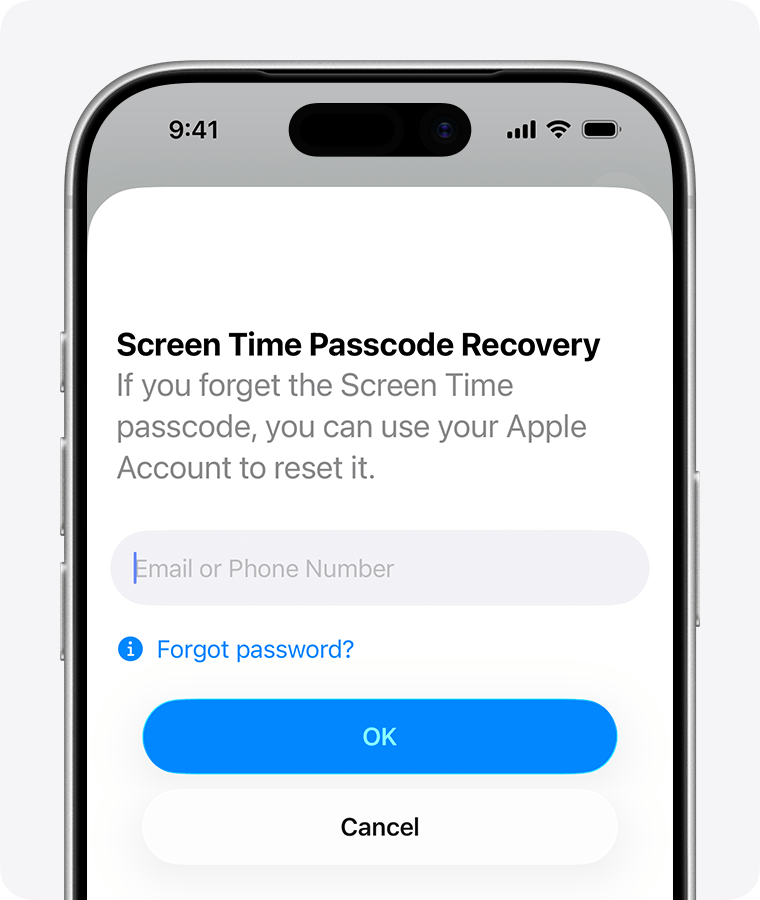
Step-by-step setup with screenshots: the how-to guide. Need help? Email hello@waittounlock.com.
Can I still get back in?
Yes. When you choose to unlock in WaitToUnlock and your waiting period ends, it shows both your Screen Time passcode and your burner Apple Account's password. Until then, both are stored encrypted.