Every porn blocker you install from the App Store can be deleted. Hold the icon, tap Remove App, confirm, and the block is gone in about five seconds. Blockers that work through a VPN or DNS profile last slightly longer, because you have to open Settings and delete the profile, but that is still under a minute.
There is one blocker on iPhone that can't be uninstalled, because it is not an app. Screen Time is part of iOS. It has no icon to hold, no entry in the App Store, and no subscription to lapse. Its Content & Privacy Restrictions filter adult sites across the whole system, including inside Safari, Chrome and any other browser. The part that decides whether it actually holds is the passcode, and by default you set that passcode yourself, which means you can undo everything whenever you want to.
This is how to set it up so that you can't delete it, can't switch it off, and can't reset the passcode on impulse.
Why blocker apps get deleted
A blocker app has to be installed by the person it restricts, on a phone that person is holding, using an Apple Account that person controls. Deleting it requires no password and no waiting. Most people who install one delete it within a few weeks, usually at the exact moment it is doing its job.
Some blockers try to make removal harder by asking for a partner's approval, sending an alert when the app is uninstalled, or hiding the uninstall behind a support ticket. Those measures raise the cost of removing the app, but the app still comes off the phone in seconds and the notification arrives after the fact.
What "can't uninstall" needs to mean
People searching for a blocker they can't uninstall are usually asking about three separate things, and a setup has to close all three:
You can't delete it. There is no app to remove. Screen Time covers this on its own.
You can't turn it off. The restrictions can only be changed by someone who knows the Screen Time passcode. This is covered only if the passcode is one you don't know.
You can't reset it. iOS offers a Forgot Passcode? option that resets the Screen Time passcode using an Apple Account. If that account is yours, you can undo the whole setup in about thirty seconds. This is the step most people miss.
Step 1: Turn on the content restrictions
Go to Settings > Screen Time > Content & Privacy Restrictions and turn the toggle on. Under Content Restrictions > Web Content, select Limit Adult Websites.
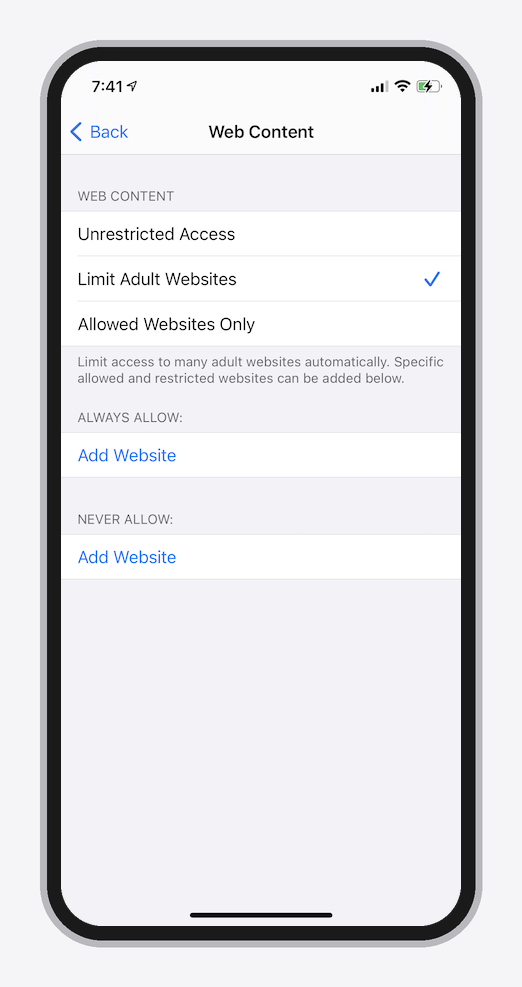
This does two useful things. It filters adult sites in every browser, not just Safari, and it removes Private Browsing from Safari so your history stays visible. It is not a perfect filter and it will miss some sites, which is why the next step matters.
For a stricter version, set the App Store age rating to 13+ under Content Restrictions > Apps. That hides apps rated 17+ and blocks a large amount of adult content that the web filter alone lets through. There is a full walkthrough of the 13+ approach here.
Step 2: Close the reinstall route
A web filter is worth little if you can install a browser that ignores it, or delete and reinstall an app to reset its state. Under Content & Privacy Restrictions > iTunes & App Store Purchases, set Installing Apps to Don't Allow.
With that set, the App Store disappears from the home screen and you cannot add a new browser or re-add an app you removed. Safari can't be deleted because it is a system app, and its content is already filtered by step 1. If you would rather remove Safari entirely, turn it off under Allowed Apps instead, which hides it rather than deleting it.
Step 3: Lock it with a passcode you don't know
In Settings > Screen Time, tap Lock Screen Time Settings. On older versions of iOS this is called Use Screen Time Passcode. iOS asks for a 4-digit code and then asks you to type it again to confirm.
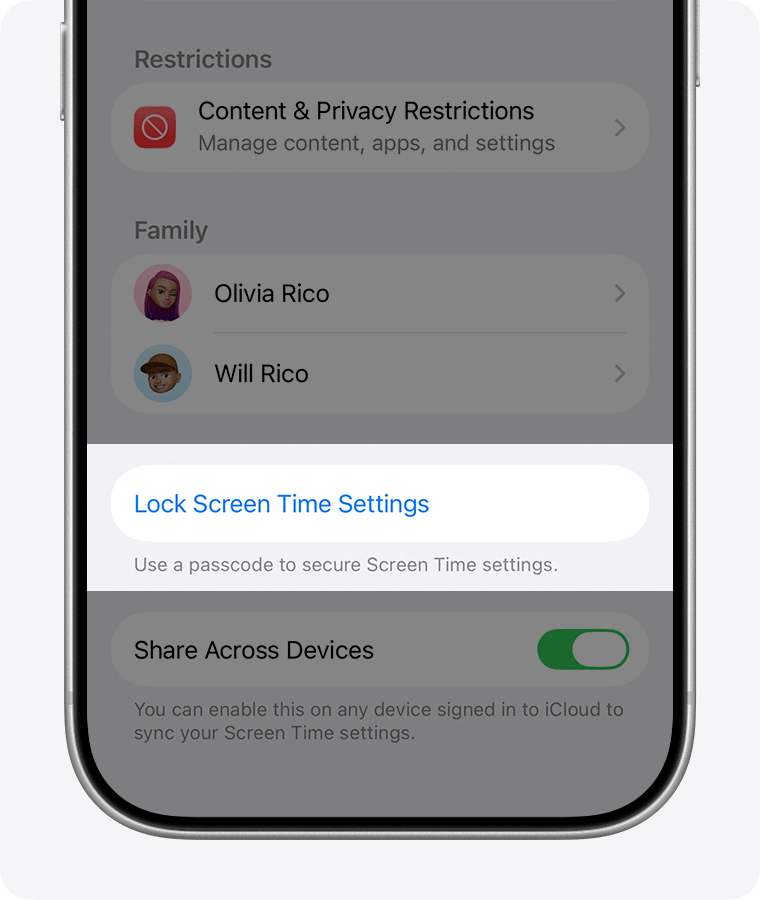
Because iOS makes you enter the code twice, choosing it yourself almost always means memorising it, and a code you remember gives you back the ability to turn everything off. The code has to be one you never learn. There are two ways to get there.
The first costs nothing: set up all your restrictions, then have someone you trust type a code in while you look away. The drawback is that they have to be reachable whenever you need a legitimate change.
The second is to use a code that is generated and entered without you seeing it. That is what WaitToUnlock does. It generates a random passcode and guides you through typing it using a flow that mixes in decoy digits, so you enter the correct code without learning it. The code is stored encrypted and can be retrieved later, but only after a waiting period, so you can't undo the restrictions the moment you want to.
Step 4: Close the Forgot Passcode route
This is the step that decides whether any of the above holds. After you set the passcode, iOS asks for an Apple Account to use for Screen Time Passcode Recovery.
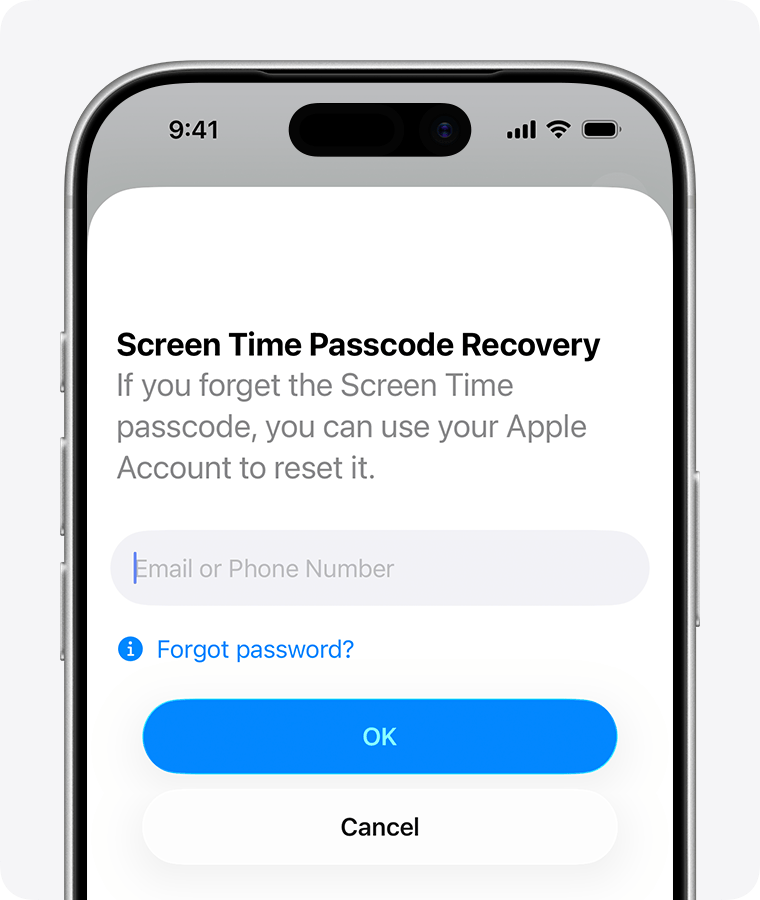
Tapping Cancel here does not disable recovery. Even with no account linked, the Forgot Passcode? option still appears later and accepts the iCloud credentials you are already signed in with. So your own Apple Account can reset the Screen Time passcode whether you linked it or not, and the restrictions come off in well under a minute.
The way to close this is to enter an Apple Account whose password you don't know. WaitToUnlock's Complete Lockout feature generates a password for a fresh account, you create the account with it, and the password is then held for you on the same delay as the passcode. Set that account as the recovery account and Forgot Passcode? stops being an instant reset while a real recovery path still exists. There is a detailed guide to this step here.
What this still doesn't stop
Being honest about the limits is worth more than overselling the setup.
Erasing the iPhone and setting it up as new removes Screen Time along with everything else on the device. That path stays open and no iOS setup can close it. What it costs is your photos, messages, apps and settings, your Apple Account password, and a long wait while the phone restores. That is a very different decision from deleting an app during a thirty-second urge, and in practice almost nobody follows through with it.
A second phone, a work laptop or a desktop computer is also outside this setup entirely. Screen Time restrictions apply per device unless you are using Family Sharing. If another device is part of the problem, it needs its own restrictions.
And the web filter is not exhaustive. It misses sites, and it does not cover adult content that arrives inside apps like Reddit, X or Telegram. If those are the route for you, block the apps themselves under Allowed Apps or with an App Limit, rather than relying on the web filter to catch them.
Keep a way back in
One warning worth repeating. The Screen Time passcode is needed for a range of settings changes, and if you destroy the only copy of it, the way back can be erasing the phone. Do not set a random code with no record of it anywhere.
What you want is a code you can't get on impulse but can still get when you genuinely need it: held by a trusted person who will only return it after a delay, sealed somewhere inconvenient, or held by a tool with a built-in waiting period. Slow retrieval is the goal. No retrieval is a problem.
The short version
Blocker apps come off the phone in seconds, so use Screen Time instead, which can't be uninstalled because it is part of iOS. Turn on Limit Adult Websites and set the App Store rating to 13+, block app installs so you can't add another browser, lock it with a passcode you never learn, and set the recovery account to an Apple Account whose password you don't have. Keep a slow but real way to recover both.