Screen Time works well. It's built into iOS, it's free, and App Limits and Downtime do what they promise. The problem is the passcode that protects it. Apple uses a 4-digit code, and it makes you enter that code twice when you set it, so you usually end up memorising it without meaning to. From then on, every limit is easy to bypass: you hit a block, tap "Ignore Limit," type the four digits you know, and you're back in.
The fix is to set a passcode you genuinely don't know, so that "Ignore Limit" no longer works. There are two ways to do that, covered below, plus one setup detail you have to get right so you don't lock yourself out permanently.
Why locking yourself out works
Screen Time limits fail because you can override them. You set the rules when you're motivated, then cancel them in a few seconds when you're not, because you know the 4-digit code. If you don't know the code, the limit stays in force.
Option 1: Have someone else set the passcode
This costs nothing. Set up your app limits and Downtime first, then have someone you trust enter a Screen Time passcode while you look away. You never see it, so you can't use the override.
Downside: they have to be available whenever you need a legitimate change, and "just tell me the code" can get awkward. More on this in the partner passcode hack.
Option 2: Use a random passcode you never see
If you don't want to involve anyone, use a passcode you never learn. The difficulty is that iPhone makes you type the code twice to set it, so if you pick your own code you will usually memorise it in the process.
WaitToUnlock handles this. It generates a random Screen Time passcode and walks you through entering it using a guided flow with decoy digits, so you set the code without learning it. The code is then stored encrypted. You can retrieve it later, but only after a waiting period, so you can't override a limit the moment you feel like it.
Don't lock yourself out permanently
One warning. The Screen Time passcode can be needed to change major settings, and if you lose it completely, the only way back can be erasing your phone. Never destroy the only copy of the code.
What you want is a passcode you can't retrieve on impulse but can still get back when you genuinely need it. If you'd rather not use a tool like WaitToUnlock, write the code on paper and seal it somewhere inconvenient, or give it to someone who will only hand it back after a delay. The goal is to make retrieval slow while keeping it possible.
How to set it up, step by step
A shorter, more exact version of this walkthrough, including the two settings people usually miss, is in How to Set Up Screen Time So You Can't Bypass It.
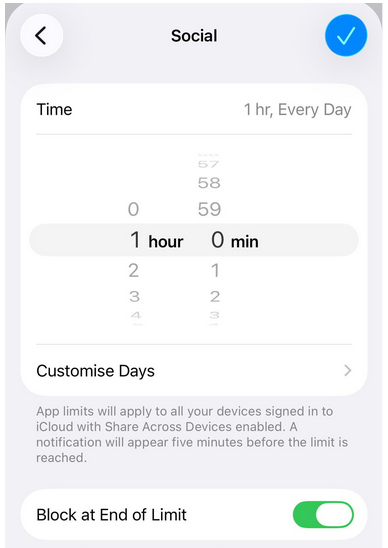
1. Set your limits first. In Settings > Screen Time, configure App Limits, Downtime, and Content & Privacy Restrictions. Do this before there's any passcode in the way, so you can still change everything freely.
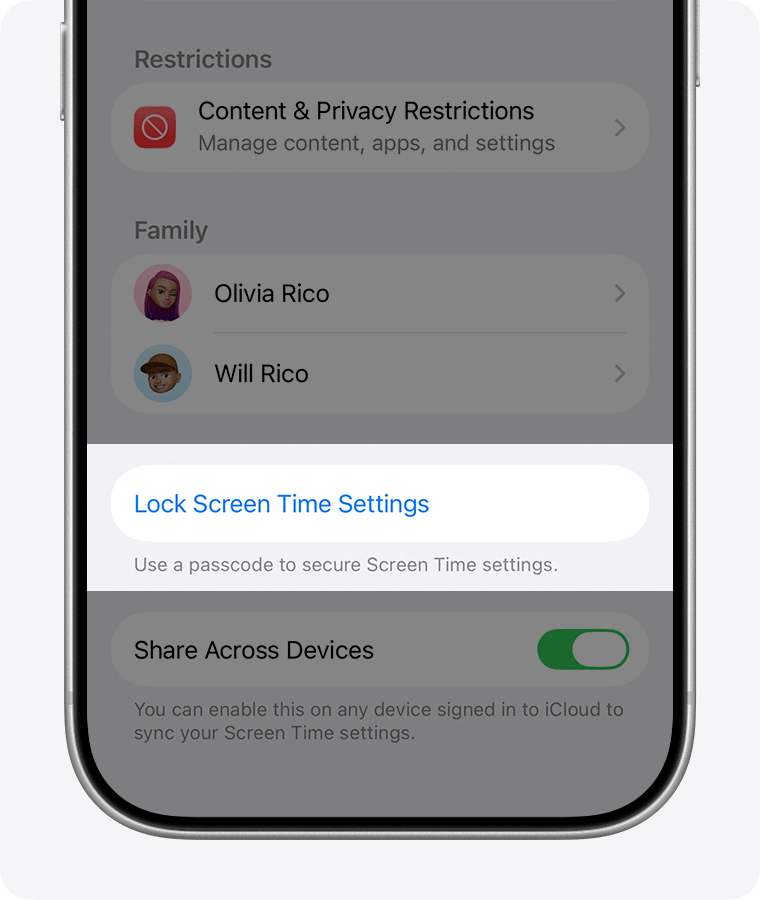
2. Turn on the Screen Time passcode. In Settings > Screen Time, tap Lock Screen Time Settings (on older iOS it's Use Screen Time Passcode). iOS asks you to enter a 4-digit code, then enter it again to confirm. This is the code that protects your limits.
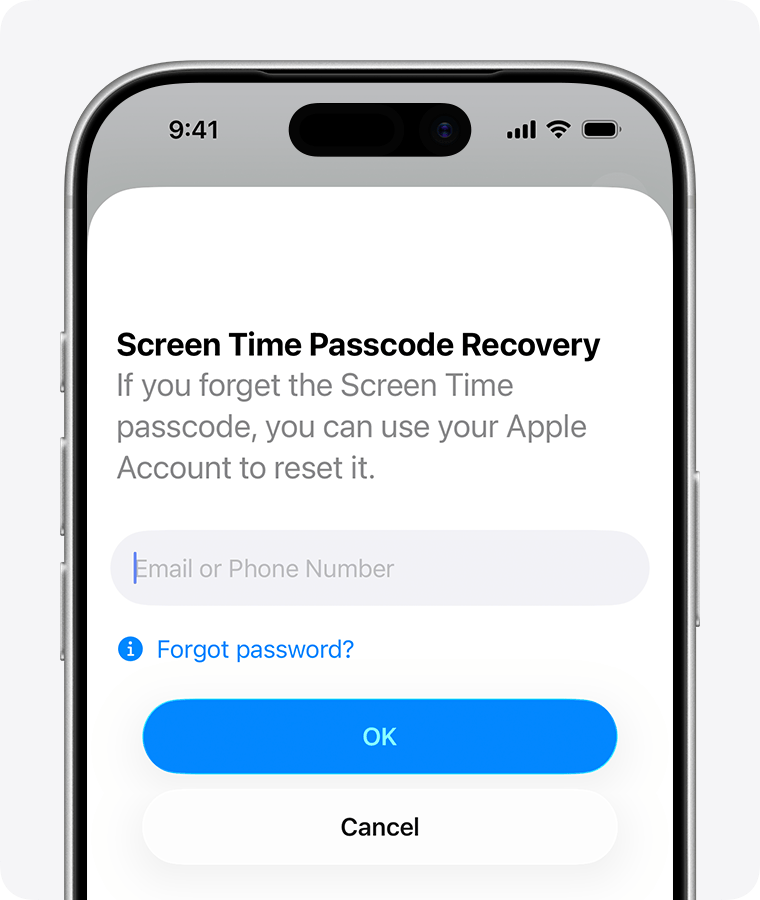
iOS will then ask for an Apple Account to use for recovery. Note that tapping Cancel here does not remove the recovery option. Even with no recovery account linked, iOS still shows a Forgot Passcode? option later, and it accepts the iCloud credentials you're already signed in with. So your own Apple Account can reset the Screen Time passcode whether you link it or not, which gives you back the exact override you're trying to remove.
The only reliable fix is to enter an Apple Account whose password you don't know on this screen (full guide here). That's what WaitToUnlock's Complete Lockout feature is for: it generates a password for a fresh burner Apple Account, you create the account, and the password is then locked away. Set that burner account as your recovery account. After that, Forgot Passcode no longer gives you an instant reset, but a genuine recovery path still exists.
3. Make it a passcode you don't know. The code from step 2 has to be one you can't recall. Have a trusted person type it in while you look away, or use WaitToUnlock to generate and enter one you never see. If you set it yourself and remember it, nothing has changed and you can still override every limit.
4. Keep a slow recovery path. Make sure there's a deliberate way back in: a sealed note with the code, the trusted person who set it, or WaitToUnlock's built-in wait. If you used Complete Lockout, the burner account's password is also held for you and shown during guided setup, so a forgotten code never forces you to erase your phone.
The short version
Limits fail because you can override them. Set your limits, use a passcode you don't know so you can't override them on impulse, and keep a slow but reliable way to recover the code if you need it.